Chat & AI
Generating and editing images in chat
Ask for a picture in plain words, then download it, save it, reply to it, or paint over part of it to change just that, even adding your own logo.
Step 1
Just ask
There is no switch. Describe the image in the normal message box: the subject, the style, such as a flat illustration or a realistic photo, and anything that matters, like colours or layout. The more specific you are, the closer the result.

Press Enter to send, Shift+Enter for new line
Step 2
While it works
A small chip reads Generating image while it is made, usually a few seconds. The image then appears in the conversation, up to a few hundred pixels tall; press it to see it full size, and Escape closes it. Several images show as a gallery with a strip of thumbnails.
Step 3
Hover for the actions
Move over the image and a column of buttons appears in its bottom corner: Download, Copy, Save to Docs, Edit area and Reply. On a touch screen press the dots button on the image instead.
 DownloadCopySave to DocsEdit areaReply
Step 4
Keep it
Save to Docs puts the image in your Documents library like any other file, and the chat then points at that copy. Download saves it to your computer. Copy puts it on your clipboard. Each button turns green with Saved! or Copied! when done.
DownloadCopySaved!Edit areaReplyStep 5
Change the whole image
Reply quotes the image in your next message. Say what should be different, such as "make the background blue", and a new version is generated. To add something of your own, such as your logo, attach it to the same message and say where it goes. SVG logos work too.
DownloadCopySave to DocsEdit areaReplyStep 6
Change just one part
Edit area opens the image full screen on black. Paint over the part that should change with the brush, whose size you set with the slider. Zoom in with 2x or 3x and switch to Move to pan around. Select whole image paints all of it at once. Undo, or Cmd or Ctrl+Z outside the text box, takes back a stroke and Clear removes them all.
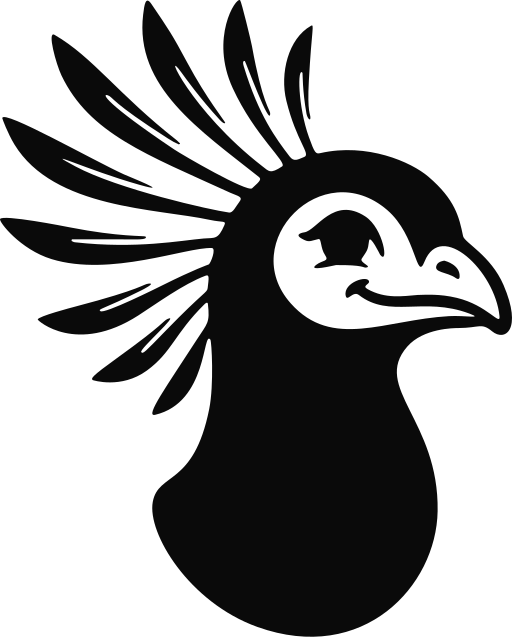
Edit area · Secretary bird illustration
Paint over what should change. Everything else stays exactly as it is.
What should change in the painted area?
Step 7
Add an image to use there
Press Attach to add up to 4 images, such as a logo, to use in the painted area. PNG, JPEG, WebP, GIF, SVG and HEIC all work. Each shows as a small thumbnail; press its cross to remove it. They are also added to the chat, and Apply edit waits until they have finished uploading.
Edit area · Secretary bird illustration
Paint over what should change. Everything else stays exactly as it is.
What should change in the painted area?
Step 8
Say what goes there
Type what should appear in the painted area, or how to use an image you attached, such as "put the attached logo here", and press Apply edit. Everything outside the paint stays exactly as it was, and the edited image replaces the old one in the chat.
Edit area · Secretary bird illustration
Paint over what should change. Everything else stays exactly as it is.
What should change in the painted area?
Try it in Secretary, or create an account to get started.
Related guides
Starting a new chat
The start screen, starter prompts, temporary chats, and what New chat does once you are already in a conversation.
Attaching files to a chat message
Add a file from your computer so the AI can read it: press the paperclip, drag it in, or paste it.
Scoping a chat to specific documents or folders
Point the AI at exactly the files in your library it should answer from, and choose how deeply it reads them.